Travel easy logo on header
Hotline: 1900292959
Working hours: 06:00 - 00:00
Promotions
american-flag-icon
EN | USD
  • Hotel
  • Flight
  • Tour
  • eSim
  • My bookings
  • Explore
Travel easy logo on footer
Call center: 1900292959
Email: contact@traveleasy.vn
Office: 97 Nhất Chi Mai, Phường Tân Bình, TP. Hồ Chí Minh
Customer Care Center: 290D/8 Dương Bá Trạc, Phường Chánh Hưng, Thành phố Hồ Chí Minh
Bộ Công Thương
DMCA Protection
Wildcard SSL
Support for card payments
icons8-visa-240.png
mastercard.png
jcb.png
qr.png
momo.png
onepay.png
apple-pay.png
ss_pay.jpg
About TravelEasy
Introduction
Contact
Help
Theo dõi chúng tôi trên
Facebook
Facebook
Tiktok
Tiktok
Youtube
Youtube
Zalo
Product
Flight
Hotel
Tour
eSim
Policies & Regulations
How to Buy
Inspection Policy
Delivery Policy
Payment methods
Privacy Policy
Cancellation, Exchange, and Refund Policy
Customer Complaint Process
© 2024 TravelEasy Tourism Co., Ltd. – Licensed by the Department of Planning and Investment of Ho Chi Minh City (Business Registration No. 0318597564, issued July 31, 2024).

eSIM Information

Understanding eSIM – Your Global Connectivity Solution

What is eSIM?

eSIM (embedded SIM) is a digital SIM built directly into your device by the manufacturer, completely replacing traditional physical SIM cards. It stores user identification and subscription data digitally, allowing you to activate mobile service without a physical card.

Advantages of eSIM

• Convenience: No need to buy or swap physical SIMs when changing carriers or traveling abroad. • Cost-effective: Access affordable local data plans instead of expensive international roaming. • Easy switching: Switch carriers instantly via software. • Sleeker design: Devices can be thinner without a SIM tray. • Durable: No risk of losing or damaging a physical card — ideal for smartwatches and IoT devices.

How eSIM Works

eSIM works the same way as a physical SIM but is built into the device. Instead of inserting a card, you scan a QR code or enter an activation code to download the carrier profile. Each eSIM contains support apps and identifiers like ICCID and IMSI, just like a physical SIM, allowing carriers to recognize your device and user on their network.

eSIM Installation Process

1. Purchase an eSIM plan from a provider. 2. Receive QR code or activation details via email. 3. Scan the QR code or enter details on your device. 4. The device downloads the eSIM profile from the carrier’s server. 5. Activate and start using!

Why eSIM is Perfect for Travel

Traveling abroad with eSIM is far superior to buying local SIMs or using international roaming:

Save Time & Effort

• No queuing at airport SIM counters. • Install before you fly — connect instantly on arrival. • No SIM ejector tool needed.

Save Money

• Much cheaper than roaming charges. • Multi-country and regional plans available. • Choose the exact data amount you need.

Maximum Flexibility

• Store multiple eSIMs and switch instantly. • Keep your home SIM active for calls/SMS while using eSIM for data. • Some plans include calls and SMS.

Enhanced Security

• No physical card to lose or steal. • Advanced encryption and security features. • No need to provide personal details at local shops.

eSIM vs Physical SIM Comparison

FeatureeSIMPhysical SIM
InstallationBuilt into deviceManually inserted
ActivationQR code or manual codeInsert card & turn on
Switching carriersInstant via softwarePhysically swap card
Travel abroadPre-install before departureBuy new SIM on arrival
Multiple carriersStore many profilesOne carrier per card
Risk of damage/lossVery lowHigher (can bend, oxidize, get lost)
Device compatibilityNewer devices onlyAlmost all devices

Things to Know Before Using eSIM

While eSIM offers huge benefits, keep these points in mind:

Device Compatibility

Not all devices support eSIM. Most iPhones from XR onward, recent Samsung Galaxy S and Google Pixel models are compatible.

Internet Required for Setup

You need Wi-Fi or mobile data to download the eSIM profile.

Active eSIM Limit

Most phones allow only one active eSIM + one physical SIM at a time (some high-end models support Dual eSIM).

Non-transferable

Once installed, an eSIM cannot be moved to another device. You’ll need a new eSIM for a new phone.

Coverage

Always check the coverage map. Some plans work perfectly in cities but may have limited rural coverage.

Supported Devices

List of eSIM Supported Devices

The list below includes devices officially supporting eSIM technology. Before purchasing and using eSIM, please check if your device is on this list.

Apple

iPhone XRiPhone XSiPhone XS MaxiPhone 11iPhone 11 ProiPhone 11 Pro MaxiPhone SE (2nd generation)iPhone 12iPhone 12 miniiPhone 12 ProiPhone 12 Pro MaxiPhone 13iPhone 13 miniiPhone 13 ProiPhone 13 Pro MaxiPhone 14iPhone 14 PlusiPhone 14 ProiPhone 14 Pro MaxiPhone 15iPhone 15 PlusiPhone 15 ProiPhone 15 Pro MaxiPad Pro (3rd generation và các thế hệ sau)iPad Air (3rd generation và các thế hệ sau)iPad (7th generation và các thế hệ sau)iPad mini (5th generation và các thế hệ sau)Apple Watch Series 3 Cellular và các model sau
* iPhone devices require iOS 12.1 or later to support eSIM.
* Some iPhone models sold in mainland China have dual physical SIM trays and do not support eSIM.

Samsung

Galaxy S20Galaxy S20+Galaxy S20 UltraGalaxy S21Galaxy S21+Galaxy S21 UltraGalaxy S22Galaxy S22+Galaxy S22 UltraGalaxy S23Galaxy S23+Galaxy S23 UltraGalaxy S24Galaxy S24+Galaxy S24 UltraGalaxy Note 20Galaxy Note 20 UltraGalaxy Z Fold 2Galaxy Z Fold 3Galaxy Z Fold 4Galaxy Z FlipGalaxy Z Flip 3Galaxy Z Flip 4Galaxy Z Flip 5Galaxy Watch 3 LTEGalaxy Watch 4 LTEGalaxy Watch 5 LTE
* Samsung Galaxy devices require Android 10 or later.
* eSIM support may vary by carrier and country.

Google

Pixel 3Pixel 3 XLPixel 3aPixel 3a XLPixel 4Pixel 4 XLPixel 4aPixel 4a 5GPixel 5Pixel 5aPixel 6Pixel 6 ProPixel 6aPixel 7Pixel 7 ProPixel 7aPixel 8Pixel 8 Pro
* Pixel 3 and Pixel 3 XL initially supported eSIM only on Google Fi; later updates added full eSIM support.

Motorola

Razr (2019)Razr 5GRazr 40Razr 40 UltraEdge 20 ProEdge 30 ProEdge+Edge 30 UltraEdge 40 Pro

Huawei

P40P40 ProP40 Pro+Mate 40 ProMate 40 Pro+P50P50 ProMate 50Mate 50 ProP60 ProMate X2Mate XsWatch 2 ProWatch 3 Pro
* Huawei devices require EMUI 10 or later to support eSIM.
* Due to trade restrictions, some newer Huawei devices may lack full Google services.

Xiaomi

Mi 10Mi 10 ProMi 10T ProMi 11Mi 11 UltraMi 11i1212 Pro12 Ultra1313 Pro13 Ultra

OPPO

Find X3 ProFind X5Find X5 ProFind X6 ProReno 5 Pro+ 5GReno 6 Pro+ 5GReno 7 Pro 5GReno 8 Pro 5G

OnePlus

99 Pro10 Pro10T1111 ProNord 2

Windows Devices

Microsoft Surface Pro XMicrosoft Surface DuoLenovo ThinkPad X1 Carbon (Gen 8 and later)Lenovo ThinkPad X1 Yoga (Gen 5 and later)Dell Latitude 9510Dell Latitude 7410HP Elite DragonflyHP Spectre x360 14Acer TravelMate P6Acer Swift 3
* Windows devices require Windows 10 version 1903 or later and an eSIM-capable modem.
Note: This list is updated until May 2025. Devices released after this date may support eSIM but are not listed here. Please check the official information from the manufacturer.

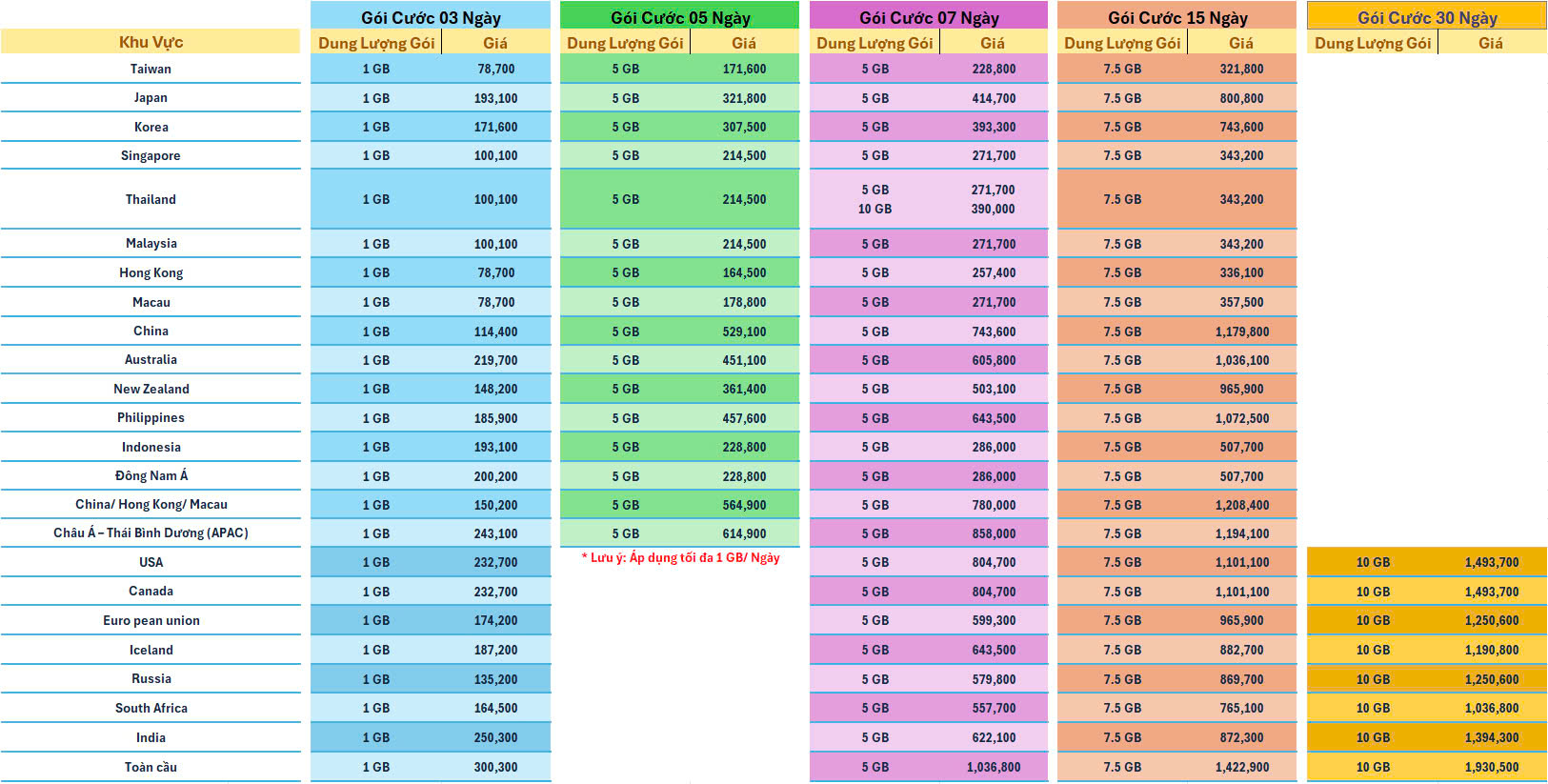
Rates

Rates eSIM

eSIM quốc tế
View detail

Setup Guide

How to Install eSIM on Your Smartphone

Installing an eSIM on compatible devices (iPhone, Samsung, Google Pixel, etc.) is fast and easy. After purchase, you’ll receive an email containing your QR code and full installation instructions.
The entire process is 100% online and takes only 3–5 minutes.

Requirement

  • eSIM-Compatible Device
    Check our compatibility list to confirm your device supports eSIM.
  • Valid Email Address
    We send the QR code, SM-DP+ address, and activation code to the email you provide.
  • Stable Wi-Fi Connection
    Required to download and activate the eSIM profile.
eSIM Setup Tips
  • Print the QR code or use a second device to display it if you only have one phone.
  • On iOS 17+, you can scan QR codes directly from Photos.
  • Save the manual activation details in case QR scanning fails.

How to Install eSIM on iPhone/iPad

QR Code Method (Recommended)

1
Step 1
Open Settings > Cellular (or Mobile Data).
2
Step 2
Tap Add eSIM or Add Cellular Plan.
3
Step 3
Choose Use QR Code.
4
Step 4
Scan the QR code sent to your email (display it on another screen or print it).
5
Step 5
Enter the confirmation code if prompted.
6
Step 6
Tap Continue → Done when setup is complete.

Manual Entry

1
Step 1
Settings > Cellular > Add eSIM.
2
Step 2
Select Enter Details Manually (at the bottom).
3
Step 3
Input the SM-DP+ Address and Activation Code provided in your email.
4
Step 4
Follow the prompts to finish activation.
5
Step 5
Nhập các trường thông tin gồm Địa chỉ SM-DP+ và mã kích hoạt.
6
Step 6
Tại màn Activate eSIM/Kích hoạt eSIM, chọn Continue/Tiếp tục.
7
Step 7
Tại màn Cellular Setup Complete/Hoàn thành cài đặt di động, chọn Done.

How to Install eSIM on Android Devices

QR Code Method (Recommended)

1
Step 1
Go to Settings > Connections (or Network & Internet).
2
Step 2
Tap SIM Manager > Add eSIM or the + icon.
3
Step 3
Choose Download a SIM instead? or Scan QR code.
4
Step 4
Display the QR code on another device or print it, then scan.
5
Step 5
Confirm and wait a few moments for the eSIM to be added.

Manual Entry

1
Step 1
Settings > Connections > SIM Manager > Add eSIM.
2
Step 2
When the QR scanner appears, select Enter Activation Code instead.
3
Step 3
Type the code provided in your email.
4
Step 4
Tap Connect and wait for confirmation.
5
Step 5
Nhập thông tin eSIM được gửi từ nhà cung cấp vào ô > bấm Connect/Kết nối.
6
Step 6
Khi được hỏi Add eSIM/Thêm eSIM không, bạn bấm Add/Thêm và đợi vài phút để điện thoại thêm eSIM vào máy để hoàn tất cài đặt.

Activate eSIM

iOS

  • 1. Go to Settings > Cellular.
  • 2. Select your eSIM → Turn on This Line and Data Roaming.
  • 3. Under Cellular Data, choose your eSIM as the default data line.

Android

  • 1. Settings > Connections > SIM Manager.
  • 2. Turn on the newly added eSIM.

Delete eSIM

iOS

  • 1. Settings > Cellular.
  • 2. Select the eSIM plan > Remove Cellular Plan > Confirm.
  • 3. Chọn Remove Cellular Plan/Xóa gói di động. Sau đó, xác nhận lựa chọn của bạn.

Android

  • 1. Settings > Connections > SIM Manager.
  • 2. Select the eSIM > Turn off > Remove > Confirm.
  • 3. Chọn gói eSIM mà bạn muốn xóa.
  • 4. Gạt nút “OFF” để tắt eSIM, sau đó chọn Remove/Xóa và xác nhận lựa chọn của bạn.

Frequently Asked Questions

Frequently Asked Questions

Find answers to the most common questions about TravelEasy eSIM service. If you can't find the answer you're looking for, please contact our Customer Support team.
What is an eSIM and how does it work?
Which devices support eSIM?
Can I buy an eSIM before traveling?
How do I install an eSIM on my phone?
Does eSIM work in all countries?
Can I use multiple eSIMs at the same time?
Do eSIMs expire?
Can I transfer an eSIM to another device?
Do TravelEasy eSIMs support voice calls and SMS?
Is eSIM data speed limited?
How do I check remaining data and validity?
Can I cancel or get a refund for an unused eSIM?

Still have questions?

If you have any other questions or need further support regarding the eSIM service, please do not hesitate to contact us:
Hotline:
1900292959 (8:00 - 22:00 Daily)
Email:
esim@traveleasy.com.vn
Online chat::
Use the chat feature on the website or the TravelEasy app for the fastest support.

Error Handling

Common eSIM Errors & Troubleshooting

Device Configuration & eSIM Installation Errors
PDP Authentication Failure
eSIM Installed Successfully but No Signal/Bars
Unable to Scan QR Code